Meta Description: Stop paying for cloud subscriptions. Learn how to setup a private cloud server at home using hardware like the Intel N100, secure VPNs, and Nextcloud or CasaOS.
In 2026, the concept of “owning your data” has shifted from a niche hobby to a modern necessity. With public cloud providers hiking monthly subscription fees and increasing their use of personal data for AI training, many users are looking for an exit. A private home cloud is the definitive solution, offering a self-hosted storage environment that mimics the features of Google Drive or iCloud without the recurring costs or privacy trade-offs.
Building a personal server allows you to reclaim your data sovereignty. Whether you are a content creator managing terabytes of 4K footage or a small business owner needing a secure repository for B2B client data, a home cloud provides high-speed LAN access and absolute control over your digital footprint.
Why Build Your Own Cloud in 2026?
The “Why” has never been clearer. Public services like Google One and iCloud have reached a point of diminishing returns for many. By hosting your own server, you solve several critical pain points:
-
Cost Efficiency: While a public 2TB plan costs roughly $120/year, a DIY server pays for itself in under 18 months.
-
Speed: You are no longer throttled by your ISP’s upload speed when moving files within your house. Gigabit transfer speeds become the standard.
-
AI Integration: Modern home servers can now run local Large Language Models (LLMs) like Llama 3 or DeepSeek, providing a private AI assistant that doesn’t send your prompts to a corporate server.
-
Privacy: Your photos, documents, and medical records stay on physical hardware inside your home.
Step 1: The Hardware Decision Framework
The hardware you choose depends on your technical comfort and what you intend to run. In 2026, the “sweet spot” for efficiency and power has changed.
The Best All-Rounder: Intel N100 Mini PCs-Setup a Private Cloud Server at Home
The Intel N100 has become the “King of Home Servers.” These mini PCs (like those from Beelink or Minisforum) are ultra-low power, idling at just 6W, yet they feature 4 cores capable of handling 4K Plex transcoding and dozens of Docker containers simultaneously.
-
Best for: Beginners, energy-conscious users, and media streaming.
-
Estimated Cost: $150–$250.
The Power User: Ryzen 9000 Series or Old Enterprise Gear
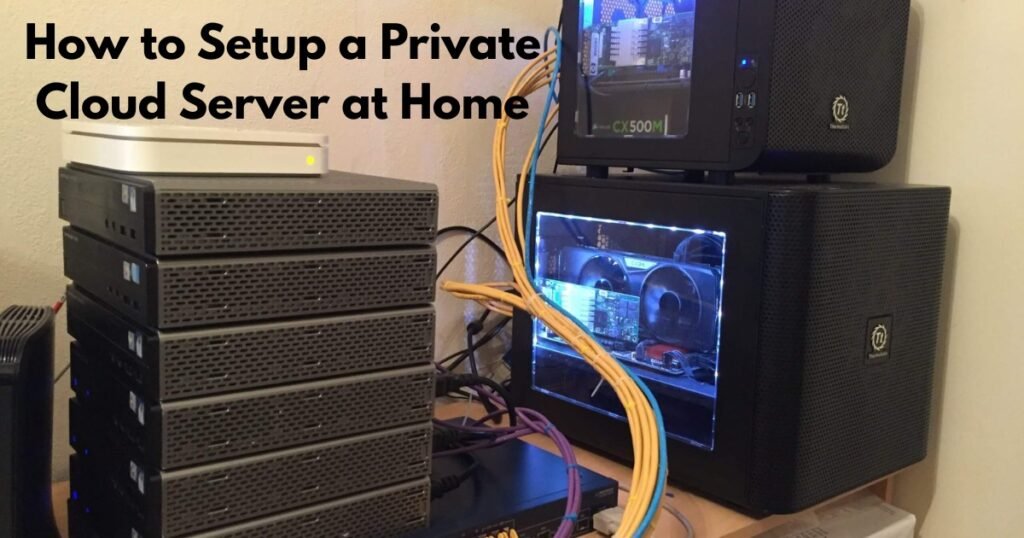
If you plan to run a “Home Lab” with multiple Virtual Machines (VMs) or local AI models, you need more threads. High-efficiency Ryzen 9000 series chips or refurbished “Tiny-Mini-Micro” PCs (Dell OptiPlex/HP EliteDesk) offer massive performance per dollar.
-
Best for: B2B use cases, local AI, and heavy virtualization.
-
Estimated Cost: $300–$600.
The Budget Entry: Raspberry Pi 5
While the Intel N100 has surpassed the Pi in value, the Raspberry Pi 5 remains a solid, silent option for basic file syncing and lightweight tasks.
-
Best for: Learning the basics and low-footprint file sharing.
-
Estimated Cost: $80–$120 (with accessories).
Step 2: Choosing Your Cloud Operating System
Your software choice dictates the user interface and how you interact with your files.
| OS / Platform | Target Audience | Key Strength |
| Nextcloud Hub 9+ | Mixed (B2C/B2B) | Most feature-rich (Email, Calendar, Talk). |
| CasaOS | Beginners | Simple, beautiful “one-click” app dashboard. |
| Proxmox VE 9.1 | Prosumers | Run multiple OSs and containers in one box. |
| TrueNAS Scale | Storage Experts | Professional-grade data protection (ZFS). |
Nextcloud remains the industry standard. It provides a familiar “Google Drive-like” web interface and excellent mobile apps for automatic photo syncing from your phone.
Step 3: The Setup Procedure (Procedural Guide)
To get your private cloud running, follow this streamlined path.
1. Prepare the Host
Connect your server to your router via Ethernet (Cat6 or better). Avoid Wi-Fi for server hardware, as it introduces latency and instability. Flash your chosen OS (we recommend Ubuntu Server for its flexibility) onto a USB drive using a tool like Etcher.
2. Install the Cloud Layer
Once the OS is installed, the fastest way to deploy your cloud is via Docker. This allows you to run applications in “containers” that don’t interfere with each other.
-
For CasaOS: Run the one-line install script from their official site.
-
For Nextcloud: Use a Docker Compose file to spin up Nextcloud along with a database (MariaDB) and a caching layer (Redis).
3. Configure Storage & Redundancy
Your data is only as safe as your drives. Use RAID 1 (Mirroring) to ensure that if one hard drive fails, your data exists on a second one. In 2026, many users are opting for high-speed NVMe SSDs for their “hot data” (active files) and high-capacity HDDs (like WD Red or Seagate IronWolf) for long-term storage.
Step 4: Secure Remote Access (The Zero-Trust Way)
In the past, users had to “Port Forward” their routers to access files from outside the home. This is now considered insecure. The 2026 standard for security is Zero-Trust Networking.
Tailscale vs. Wireguard
-
Tailscale: A mesh VPN based on Wireguard. It is “Zero-Config.” You simply install the app on your server and your phone, and they connect securely over an encrypted tunnel. No router changes required.
-
Wireguard (Manual): Faster and leaner, but requires manual key management and port opening. Best for those who want total control.
The Reverse Proxy Option
If you want to access your cloud via a custom URL (e.g., cloud.yourname.com), use Nginx Proxy Manager or Cloudflare Tunnels. This hides your home IP address and provides an SSL certificate for encrypted HTTPS traffic.
Step 5: Cost Comparison & ROI (5-Year Forecast)
Is it actually cheaper to build your own? Let’s look at a 2TB storage scenario over five years.
| Metric | Public Cloud (Google/iCloud) | DIY Home Cloud (N100 Setup) |
| Initial Cost | $0 | ~$350 (PC + 2x Drives) |
| Monthly/Annual Fee | $120 / year | $0 |
| Electricity (Avg.) | N/A | ~$15 / year |
| 5-Year Total Cost | $600 | $425 |
The Break-even Point: You start saving money after month 18. Additionally, your home server can do things a public cloud cannot—like hosting a media server or blocking ads on your entire home network (using Pi-hole).
Expert Insights: The AI Integration Gap
One of the most exciting reasons to set up a private cloud in 2026 is Local AI. With tools like Ollama or LM Studio, you can host a local LLM on your home server.
-
Requirements: To run models comfortably, look for 16GB–32GB of RAM.
-
Use Case: You can have an AI scan your private documents to answer questions (“When does my car lease end?”) without that sensitive data ever leaving your house.
Common Mistakes to Avoid
-
Thinking RAID is a Backup: RAID protects you from a drive failure, but not from accidental deletion, fire, or theft. Always follow the 3-2-1 Backup Rule: 3 copies of data, 2 different media, 1 copy offsite (e.g., a secondary backup to a service like Backblaze B2).
-
Using Consumer SSDs for Servers: Standard SSDs can wear out quickly under constant server logging. Look for “NAS-rated” or “Enterprise” drives.
-
Ignoring Power Consumption: Leaving an old gaming PC running 24/7 can add $15/month to your power bill. Using modern, efficient chips like the Intel N100 is crucial for ROI.
FAQs
1. Is a private cloud at home secure for business data?
Yes, provided you use Zero-Trust networking (like Tailscale) and enable full-disk encryption. For B2B compliance, ensuring the server is physically secure and backed up offsite is essential.
2. Can I setup a home cloud without any technical skills?
Platforms like CasaOS and hardware like Synology NAS are designed for non-technical users. If you can install a mobile app, you can likely set these up.
3. Do I need a fast internet connection?
Your Download speed doesn’t matter as much as your Upload speed. If you want to access large files while traveling, an upload speed of 20Mbps or higher is recommended.
4. What happens if the power goes out?
Your server will shut down. It is highly recommended to use a small UPS (Uninterruptible Power Supply) to provide 15–20 minutes of battery backup, allowing the server to shut down safely without corrupting data.
5. Can I use my old laptop as a cloud server?
Absolutely. Laptops are great because they have a built-in “UPS” (the battery) and are generally very power-efficient. Just ensure the cooling is adequate if it’s tucked in a closet.
6. Does Nextcloud work on iPhone and Android?
Yes. Both have dedicated apps that can automatically upload your “Camera Roll” to your home server the moment you walk through your front door.
7. How do I prevent hackers from accessing my home server?
The most effective way is to disable Port Forwarding and use a VPN tunnel. This makes your server invisible to the public internet.
Conclusion
Setting up a private cloud server at home is the most impactful project you can undertake for your digital life in 2026. By choosing the right hardware like an Intel N100 mini PC, securing it with a modern VPN, and deploying a user-friendly OS like Nextcloud or CasaOS, you gain independence from the “subscription economy.”